
SPAD512 & SPADα | Photon-Counting Gated SPAD Cameras
Sensor Technology
SPAD
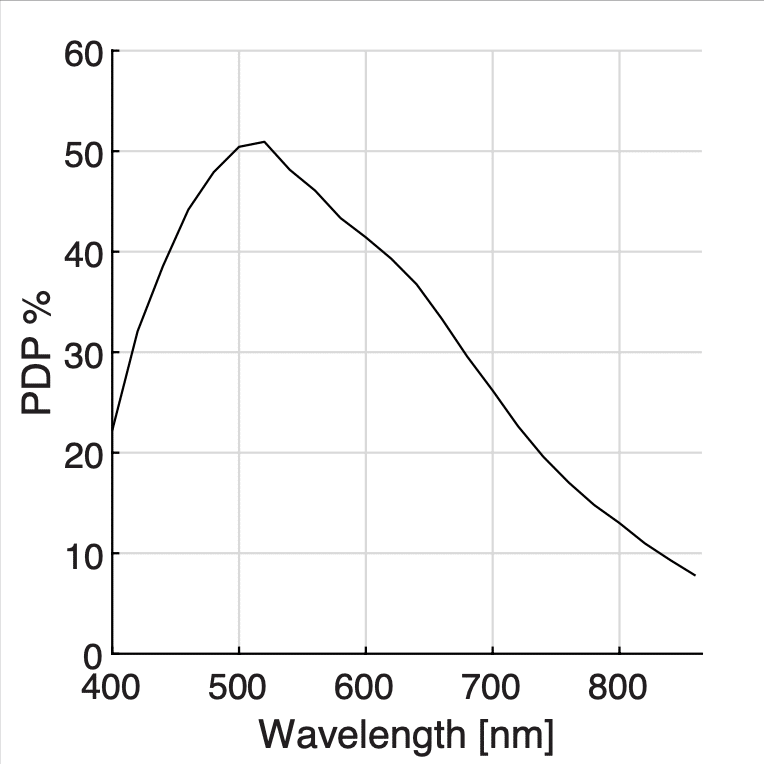
Quantum Efficiency
50% @ 520 nm
Readout Noise
0 e- rms
Resolution
512 x 512 / 1024 x 1024
Frame Rate
100,000 fps (1-bit) / 2,500 fps (4-bit)
Gate Width / Gate Shift
6 ns / 17 ps
 Description
 Specifications
 QE Curve
 Applications
 Pictures
 Videos
 Downloads
 Publications
Photon-counting gated SPAD camera, in a nutshell
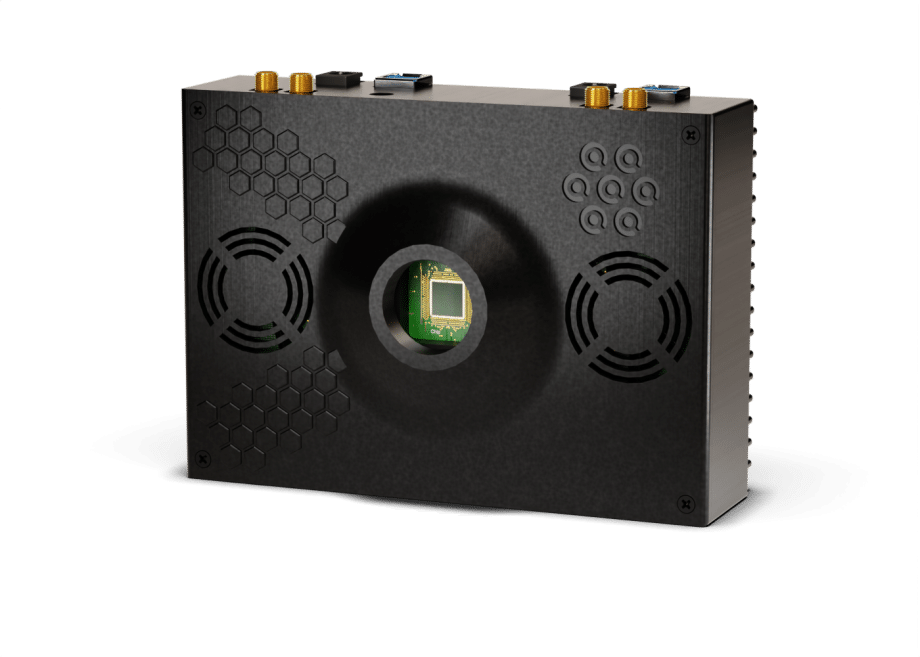
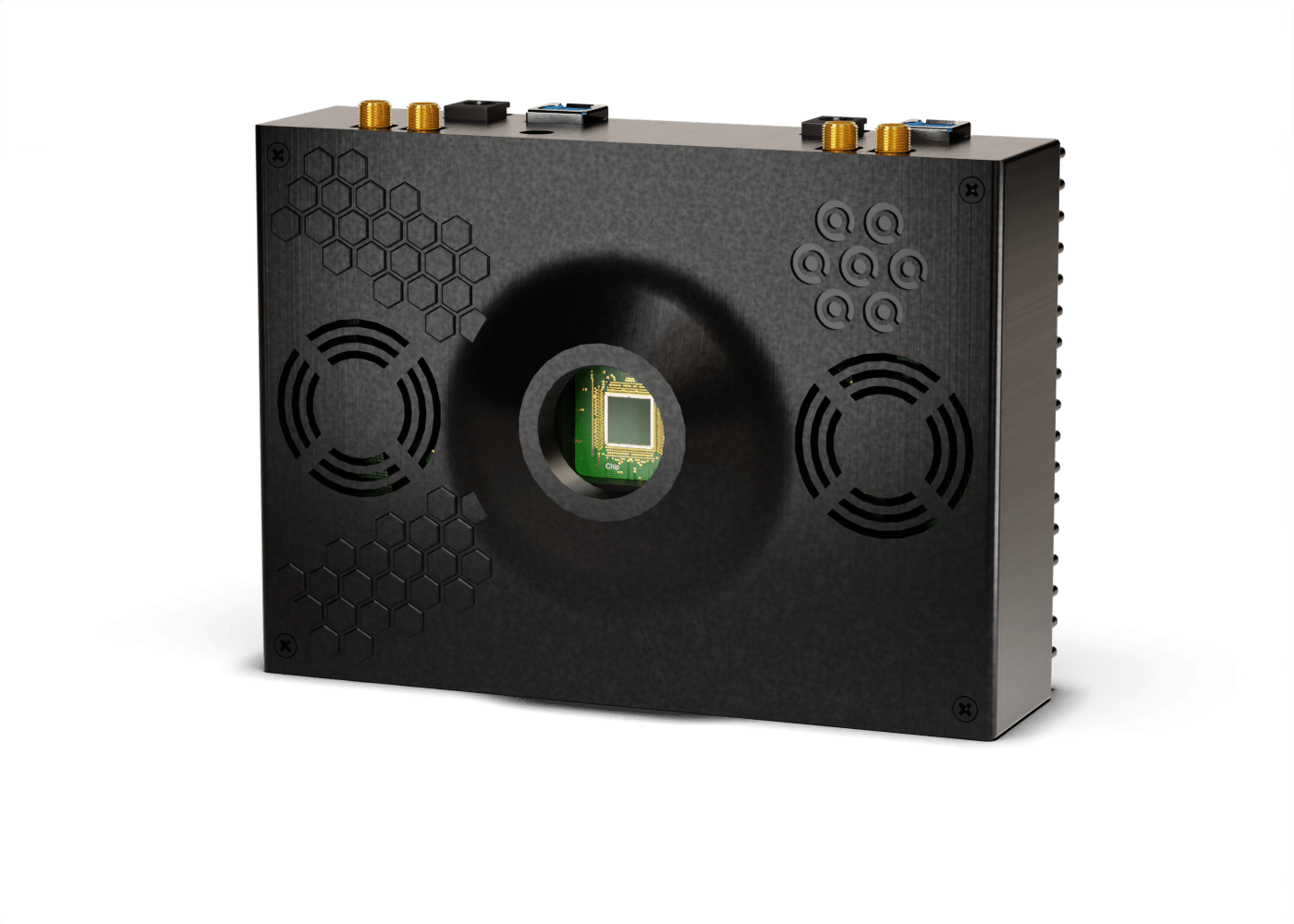
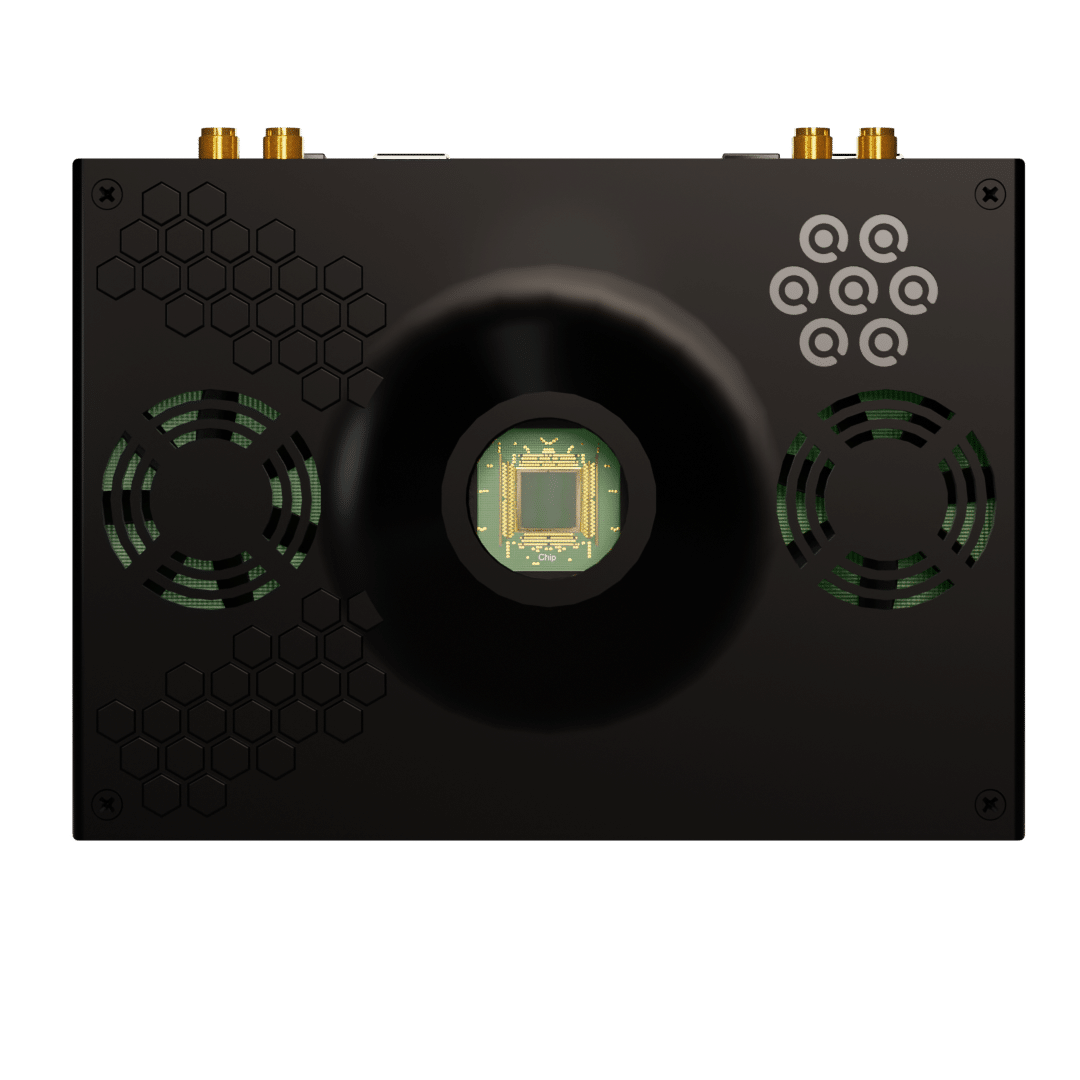
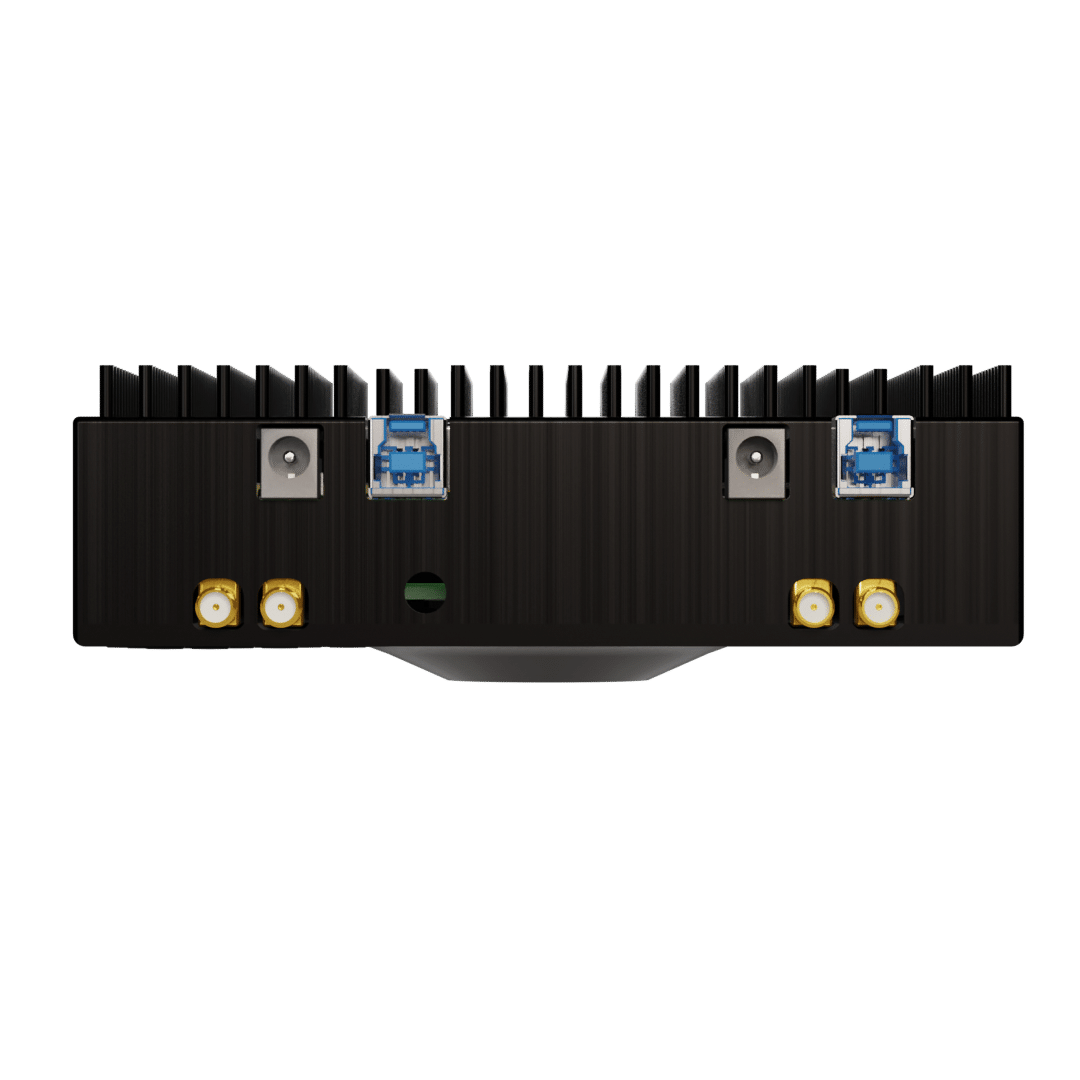
The SPAD512 and SPAD Alpha are photon-counting gated cameras based on a proprietary SPAD chip designed for single-photon sensitivity high-speed imaging. The core of these cameras is a SPAD image sensor with either a 512 x 512 array or a 1024 x 1024 array of pixels. It features a global shutter with picosecond precision and nanosecond exposures. It enables a peak photon detection probability of more than 50%, a typical dark count rate of less than 25 counts per second (SPAD512) and effectively zero readout noise.
The system software enables 1-bit, 4-bit, 6-bit, 7-bit, … up to 12-bit imaging with gated capability down to 6 ns with steps as small as 20 ps and phasor FLIM processing. It can be accessed through TCP/IP for easy integration into LabVIEW, Matlab, or Python.
Thanks to its single-photon sensitivity and gated capability the SPAD camera aims to replace EMCCD and ICCD is many experiments.
Photon-counting gated SPAD camera, more information
Intensity imaging
SPAD cameras delivers intensity images where the user defines the bit-depth, though these are obtained by sequentially summing 1-bit images. In a 1-bit image each pixel indicates whether it detected at least one photon (pixel value = 1) or none (pixel value = 0). Since the camera has only a single-bit memory in each pixel, incident photons might be ignored when the memory is already filled with a ‘1’. This effect is mainly noticeable for higher photon count rates and can be corrected, for instance using the pile-up correction. This correction transforms the measured amount of photons into the probable amount of photons that hit the SPAD. To correct the images, one can use the following formula to correct the measured number of photons in each pixel Nmeasured into the actual amount of photons Nactual:
This formula is valid for a 8-bit image data (255 levels). In case a different bit depth is used, the value 255 has to be adapted to reflect this change, e.g. 4-bit requires the value 15. For more information about the intensity imaging capabilities, please refer to the Software tab.
Gated imaging
SPAD cameras have gated imaging capabilities which provide some unique features similar to intensifiers. The SPAD gating measurement principle is explained below.
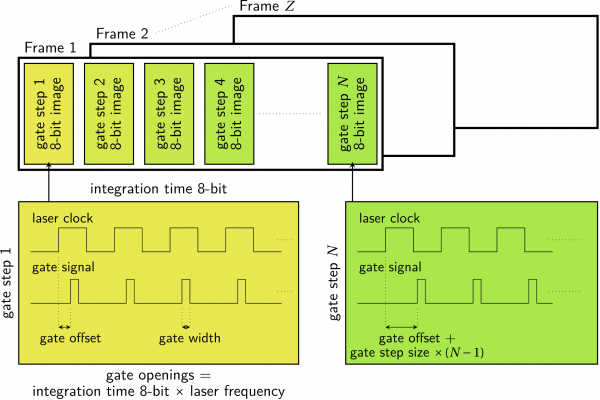
A gated frame is a series of 6, 7 or 8-bit images, each shifted by a small time step in order to reconstruct the time varying phenomenon of interest. The number of images to be taken in a single frame is given by the gate steps parameter, or in case arbitrary step sizes are used, by the number of arbitrary steps. Each step, the gate opening, defined by the gate width, is shifted by the set gate step in picoseconds. The gate is shifted away from the rising edge of the laser clock in either positive direction (gate increment) or negative direction (gate decrement). To create a single 8-bit image, the gate is opened for N times, where N is given by the integration time (8-bit) multiplied by the laser frequency. For example, when the integration time is set to 3ms and the laser frequency is 20MHz, the gate will open 60,000 times to create a single image. For more information about the gated imaging capabilities, please refer to the Software tab.
Fluorescence lifetime imaging
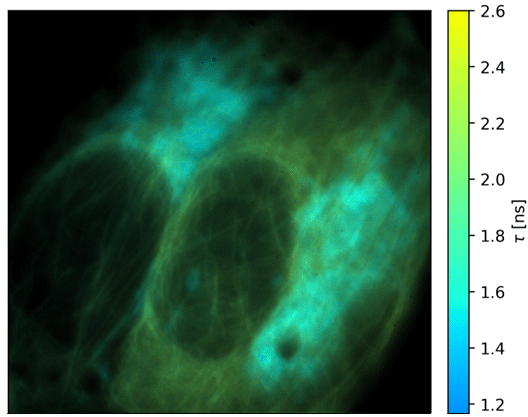
SPAD cameras also feature fluorescence lifetime imaging capabilities. This mode uses a sequence of gated images to calculate the lifetimes and generate a lifetime image. FLIM (Fluorescence Lifetime Imaging Microscopy) images are generated with the phasor method.
In the case of mono-exponential samples, the calibration of the IRF (Instrument Response Function) finds the falling edge of the gate. The end of the IRFs falling edge determines the starting point for normal measurements and the measurement window is defined by the maximum lifetime. Since the gate falling edge is convolved with the fluorescence decay for normal measurements, we will capture exactly the exponential part of the decay curve. The phasor is calculated directly from the measurement data without further corrections.
In the case of bi-exponential data, the calibration and measurements rely on the complete gate window. Therefore, the calibration determines both the gate rising and falling edges and calculates the complete window, including the extension from the fluorescence convolution. For normal measurements, the phasor data is calculated and the IRF phasor data is subtracted from it.
For each measurement, an intensity image, lifetime image, pixel response curve and phasor plot are generated. For more information about the fluorescence lifetime imaging capabilities, please refer to the Software tab.
What is a SPAD or single-photon avalanche diode ?
A single-photon avalanche diode or SPAD is a solid-state photodetector based on a reverse biased semi-conductor p-n junction like photodiodes and avalanche photodiodes (APDs), but unlike regular photodiodes, a SPAD operates in a mode called “Geiger mode” where a single incoming photon will create an electron-hole pair which will be amplified enough to create a measurable current. Therefore SPADs are intrinsically able to detect single-photons, with a very high temporal resolution.
The key component of a SPAD is a region within the diode called the depletion region. This region is designed to have a high electric field, which allows it to function as a high-gain avalanche photodiode. When a single photon interacts with the depletion region, it generates an electron-hole pair. The high electric field across the depletion region causes the electron and hole to accelerate, leading to a process known as impact ionization in which each electron or hole can gain enough energy to generate another electron-hole pair, resulting in an avalanche effect. This avalanche process rapidly amplifies the initial signal, converting the weak optical signal from the single photon into a detectable electrical pulse.
SPADs can be compared to other single-photon detection technologies such as PMTs and APDs, but SPADs have several advantages over those two type of detectors.
Compared to photomultiplier tubes (PMTs), SPADs have:
- higher sensitivity over wider spectral range ;
- better time resolution ;
- less bulky so more suitable for assembling into large arrays ;
- less sensitive to electromagnetic or mechanical perturbations.
Compared to avalanche photodiodes (APDs), SPADs have:
- higher detection efficiency ;
- smaller active areas ;
- generate less dark counts.
What is a SPAD camera ?
A SPAD camera refers to an arrangement of multiple single-photon avalanche diodes (SPADs) that are integrated into a two-dimensional rows and columns format. Each SPAD within the array operates independently and is capable of detecting individual photons. The SPAD camera combines the sensitivity and photon-counting capabilities of SPADs with the ability to detect photons across a larger spatial area.
Each SPAD in the camera array is assigned a unique address, allowing individual SPADs to be accessed and controlled independently. This addressing scheme enables selective readout of specific SPADs or groups of SPADs within the array, providing flexibility in data acquisition and analysis.
The main advantage of using a SPAD array is the ability to perform spatially resolved photon detection. By detecting photons across multiple locations simultaneously, it allows for the capture of detailed spatial information about the incoming light. This is particularly useful in applications such as imaging, where the spatial distribution of photons can be used to construct images or maps.
To view more photon counting photos, click HERE.
Bit Depth Comparison (Flame)
-
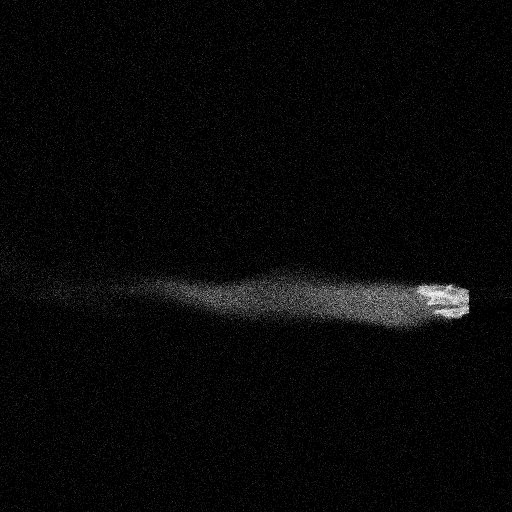
SPAD512, 4-bit, 31.25 µs, 512x512
-
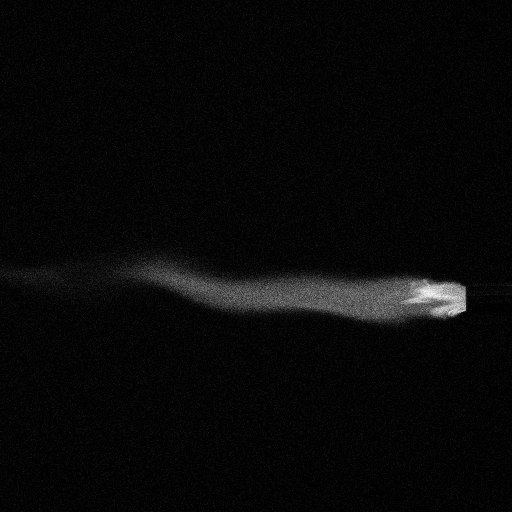
SPAD512, 6-bit, 125 µs, 512x512
-
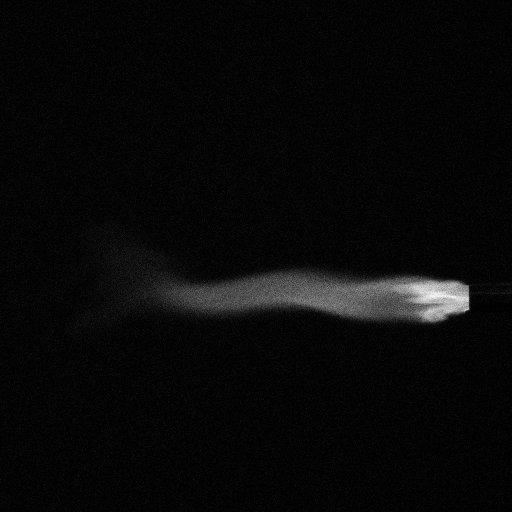
SPAD512, 7-bit, 250 µs, 512x512
-
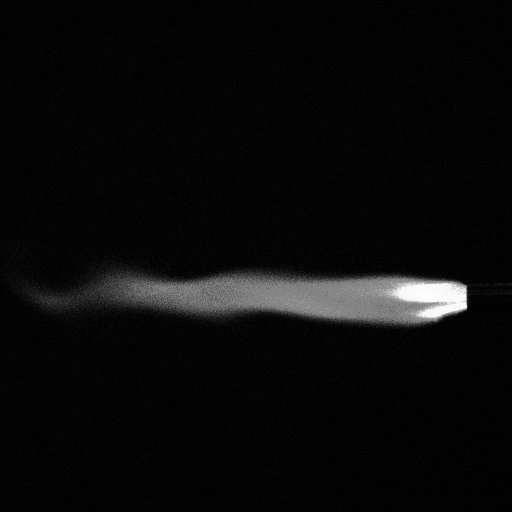
SPAD512, 8-bit, 500 µs, 512x512
SPAD Software
Downloads
Go to https://www.piimaging.com/docs/ to download the latest software versions for both Windows and Linux. Both software versions should run standalone and feature the same functionalities. The Windows version has been tested on Windows 10 and 11. The Linux version is tested on Ubuntu 20.04 and 22.04.
Installation
Windows:
- Unzip the downloaded package. It contains the following folders:
- Drivers
- SPAD512_standalone_win64
- Install the drivers and the Visual C++ Redistributables from the Drivers folder.
- Connect the two USB-B cables to the camera and the PC.
- Connect the 5V power plug to the camera’s master power jack.
- Run the software by double clicking the SPAD512.exe in the SPAD512_standalone_win64 folder.
- You should now be able to see the live view from the camera.
Linux:
- Unzip the downloaded package. It contains the following folders:
- Install
- SPADSPAD512_standalone_linux64
- Open a terminal in the Install folder and execute the following command: sudo ./install.sh . You might be prompted for your administrator password to proceed with the installation. The installation file might require execution permissions, set this with sudo chmod +x install.sh .
- Connect the two USB-B cables to the camera and the PC.
- Connect the 5V power plug to the camera’s master power jack.
- Run the software by double clicking the SPAD512 executable in the SPAD512_standalone_linux64 folder. Alternatively, open a terminal in the SPAD512_standalone_linux64 folder and execute: ./SPAD512. The application might require execution permissions, set this with sudo chmod +x SPAD512 .
- You should now be able to see the live view from the camera.
Setting up
- Keep the system in the dark and run the noise calibration from the menu.
- Still keep the system in the dark and run the dead pixel calibration from the menu.
- In case the system will be synchronized to a laser, illuminate the sensor as uniformly as possible with the laser light and run the master/slave offset calibration from the menu. This step might have to be redone on each change of input frequency.
All these parameters will be stored and loaded on each new start-up of the camera.
The software will regularly check for updates and prompt in case new updates are available. One can force an update check from the dropdown menu in the top left corner of the software interface. To use the new software, remove the old software from the PC and extract the files from the new package as described above.
Pile-up correction
This formula is valid for 8-bit image data. In case a different bit depth is used, the value 255 has to be adapted to reflect this change, e.g. 4-bit requires the value 15.
Graphical User Interface (GUI)
Menu
- Set save path > Changes the folder in which the software is saving the data to a user selected one.
- Toggle plots to linear/log > Switch the plots on the gated/FLIM tabs to use either a log or linear scale on the y-axis.
- Toggle images colormap > Switches the 8-bit colormap in between colored and greyscale representation. All images are by default saved with a greyscale color map.
- Calibrate noise > Stores a map of the noisy pixels to be interpolated for further measurements. This requires the system to be in complete darkness. The noise threshold is set to ~2kcps.
- Calibrate dead > Stores a map of the dead/broken pixels to be interpolated for further measurements. This requires the system to be uniformly illuminated.
- Calibrate master/slave offset [only after calibrate noise is completed] > Stores the laser clock delay between the two halves. This requires the system to be illuminated with a pulsed light source. The measurement integration time is the value set for gated measurements.
- Disable/enable/full-speed fans > Turn on and off the fans inside the enclosure. In the on state, the fan speed will be regulated by the internal temperature. In the full-speed state, the fans are always turning at the highest speed. In systems delivered after July 2022, the fans are always turning at the highest speed when enabled.
- Disable/enable VDD > Turn on and off the detectors power supplies.
- Check for updates > Forces an online check for a new software version.
- Help > Opens this manual.
- Quit > Closes the software.
Live view
The live view tab shows images from the sensor array. The exposure is set automatically to account for changes in the light condition. The auto exposure tries to find a suitable average light intensity, which may give unwanted results in very dark environments. A black—red—yellow—white colour scale shows the intensity variation over the array. The colour scale can be changed to grey scale in the menu.
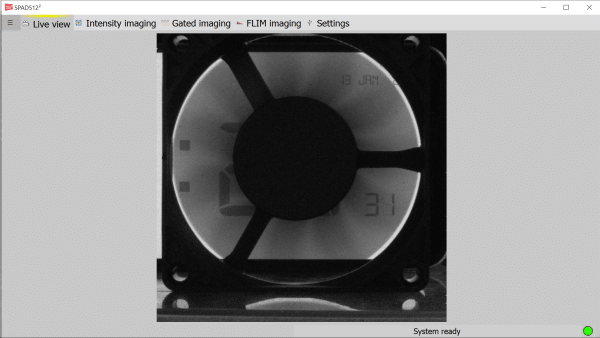
A small version of the live view is also available on the other tabs in the bottom left corners.
Intensity imaging
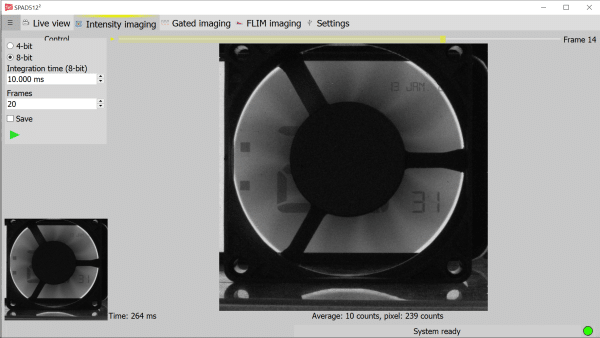
- 1/4/6/7/8-bit mode > Switch between 1, 4, 6, 7 and 8-bit imaging modes. The frame rate can be increased with a factor 2 when switching to 7-bit mode, a factor 4 when switching to 6-bit mode, a factor 16 when switching to 4-bit mode, and a factor 256 when switching to 1-bit mode.
- Integration time (1-bit) > Set the measurement integration time in microseconds for an 1-bit image. This time is the single-bit image exposure time.
- Integration time (4-bit) > Set the measurement integration time in microseconds for the total of a 4-bit image. This time is divided by 16 to get the single-bit image exposure time.
- Integration time (6-bit) > Set the measurement integration time in milliseconds for the total of an 6-bit image. This time is divided by 64 to get the single-bit image exposure time.
- Integration time (7-bit) > Set the measurement integration time in milliseconds for the total of an 7-bit image. This time is divided by 128 to get the single-bit image exposure time.
- Integration time (8-bit) > Set the measurement integration time in milliseconds for the total of an 8-bit image. This time is divided by 256 to get the single-bit image exposure time.
- Overlap expose/read checkbox > Enables the simultaneous exposure and reading from the chip, which reduces the overhead from reading the single-bit frames. This might, however, introduce some rolling-shutter artefacts in the resulting image.
- Frames > Set the number of frames to be read from the camera. Setting zero (for 4, 6, 7, 8-bit modes) gives the option to measure an infinite amount of time until the stop button is pressed. The resulting images will be displayed on the right and can be scrolled through with the scrollbar on top of the images.
- External frame trigger checkbox > Allows the start of each frame to be synchronized with an external source. On the rising edge of the frame trigger, a new 1, 4, 6, 7 or 8-bit image is integrated, dependent on the bit mode set by the user. The external trigger is sampled with the internal 100MHz clock, thus requiring the trigger to have a minimum pulse width of roughly 12ns.
- Sparse data checkbox (1-bit) > Instead of saving the complete image, only the pixels with a count are saved. Data is a binary array (integers) of the activated pixels.
- Save checkbox > Saves the measurement to disk. A folder data/intensity_images is created in the run or user specified directory and images are saved with the name IMGXXXX-YYYY.png or RAWXXXX-YYYY.bin (1-bit). XXXX denotes the run iteration, YYYY is the frame or package number of the measurement. The following metadata is available in the saved images: author, system, mode, integration time, overlap, frame, frames, external frame trigger.
The raw binary data saved in 1-bit mode is a continuous array of bits. Each bit represents a single pixel, with its value either being 0 or 1. Each binary file stores at most 1,000 frames, with each frame taking exactly 512×512 bits.
The sparse binary data saved in 1-bit mode is a continuous array of the activated pixels. Each four bytes form a single integer representing the pixel number with a value ‘1’. These binary files store at most 10,000 frames, pixel numbers are increasing. A dummy pixel 512×512 indicates the end of the current frame. - Start button > Launches the chosen measurement.
Gated imaging
The third tab provides the gated imaging capabilities of the system. The control panel is again visible on the left and results are displayed and plotted on the right. The measurement progression is indicated in the bottom status bar.
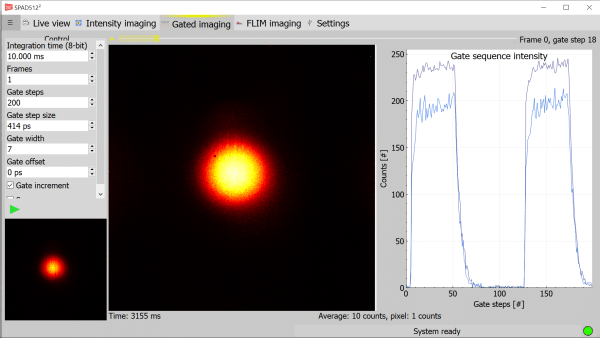
The following options are available:
- Integration time (6-bit) > Set the measurement integration time in milliseconds for the total of an 6-bit image. This time is divided by 64 to get the single-bit image exposure time.
- Integration time (7-bit) > Set the measurement integration time in milliseconds for the total of an 7-bit image. This time is divided by 128 to get the single-bit image exposure time.
- Integration time (8-bit) > Set the measurement integration time in milliseconds for the total of an 8-bit image. This time is divided by 256 to get the single-bit image exposure time.
- Frames > Set the number of gate sequences to be read from the camera. The resulting images will be displayed on the right and can be scrolled through with the scrollbar on top of the images. The intensity profile of any pixel can be shown in the plot on the right by clicking on it in the image (up to 10 graphs). One can turn the plot to log scale through the menu.
- Gate steps > Set the number of gates to take for each frame. Each gate step will be shifted away from the laser clock edge by the step size either in positive or negative direction.
- Gate step size > Set the step size in picoseconds. The step is calculated based on the provided frequency. This value is dictated by the phase shifting of the PLL.
- Arbitrary step sizes checkbox > Defines if the gate steps will be uniform or loaded with a user defined sequence. The number of gate steps is defined by the length of the user defined sequence.
- Arbitrary step sizes > Input the user defined sequence of steps. Each step is a multiple of the minimum step size. Each value has to be separated with a comma. The total number of defined steps need to be a multiple of 4, e.g. define 4, 8, 12, 16 etc. steps.
- Gate width > Set the exposure opening of the gate with respect to the laser clock period, e.g. 50ns. The width is an integer value from 4 to a value that depends on the provided frequency, which corresponds to a gate opening from roughly 8 to the period of the laser clock signal.
- Gate offset > Set the initial offset of the gate sequence. The offset is a multiple of the minimal gate step size.
- Gate increment checkbox > Defines the direction of the gate shift to be in either positive (increment) or negative (decrement) direction from the laser clock edge.
- External frame trigger checkbox > Allows the start of each frame (gate sequence) to be synchronized with an external source. On the rising edge of the frame trigger, a new 6, 7 or 8-bit image sequence is integrated, dependent on the bit mode set by the user. The external trigger is sampled with the internal 100MHz clock, thus requiring the trigger to have a minimum pulse width of roughly 12ns.
- External gate trigger checkbox > Allows the start of each gate pulse to be controlled with an external source. This triggering cannot operate together with the external frame triggering. On each rising edge of the gate trigger, a single gate is opened for the duration set by the gate width. The minimum distance between two consecutive gate triggers depends on the connected laser clock frequency, i.e. the dead time is roughly the period of the laser clock. A higher laser clock frequency will thus allow for a shorter dead time. The integration time of a single image is set separately in the software as usual. In this integration time, there can be as little as zero external gate triggers up to a maximum of the integration time divided by the laser clock period. This mode requires a synchronization clock to be active on the laser clock SMA for the internal gating circuitry to be operational. The external trigger is sampled with the internal 500MHz clock, thus requiring the trigger to have a minimum pulse width of roughly 3ns.
- Save checkbox > Saves the measurement to disk. A folder data/gated_images is created in the run or user specified directory and images are saved with the name IMGXXXX-YYYY.png. XXXX denotes the frame, YYYY is the gate step. The following metadata is available in the saved images: author, system, mode, integration time, overlap, frame, frames, gate step, gate steps, gate step size, gate width, gate offset, gate increment, external gate trigger.
- Start button > Launches the chosen measurement.
- Find gate button > Calculates the optimal gate offset and number of gate steps to cover one period of the gate.
The gating measurement principle is shown below. A gated frame is a series of 6, 7 or 8-bit images, each shifted by a small time step in order to reconstruct the time varying phenomenon of interest. The number of images to be taken in a single frame is given by the gate steps parameter, or in case arbitrary step sizes are used, by the number of arbitrary steps. Each step, the gate opening, defined by the gate width, is shifted by the set gate step in picoseconds. The gate is shifted away from the rising edge of the laser clock in either positive direction (gate increment) or negative direction (gate decrement). To create a single 8-bit image, the gate is opened for N times, where N is given by the integration time (8-bit) multiplied by the laser frequency. For example, when the integration time is set to 3ms and the laser frequency is 20MHz, the gate will open 60,000 times to create a single image.
Fluorescence lifetime imaging
- Mono/bi-exponential mode [only before calibration] > Switch between mono-exponential measurements and bi-exponential measurements. The main differences are the way the system is calibrated and the way normal measurements are IRF corrected.
- Integration time (8-bit) > Set the measurement integration time in milliseconds for the total of an 8-bit image. This time is divided by 256 to get the single-bit image exposure time.
- Maximum expected lifetime [only before calibration] > Set the maximum expected lifetime of the fluorophores under investigation. This parameter defines the measurement window of the exponential decay curve.
- Gate width [only before calibration] > Set any of the three options for a short, medium or long exposure gate width. A short gate width should be sufficient for the majority of measurements. These gate widths correspond to values 3, 6 and 9 respectively in gated imaging mode.
- Gate subsampling [only after calibration] > Divide the optimal number of gates as calculated in the calibration. For calibration, the minimum gate step size is taken to get the most accurate calibration result. For normal measurements, one can undersample to trade-off precision versus speed.
- Save checkbox > Saves the measurement to disk. A folder data/flim_images is created in the run or user specified directory and images are saved with the names IMGXXXX-intensity-YYYY.png, IMGXXXX-lifetime-YYYY.png and IMGXXXX-phasor-YYYY.pdf . XXXX denotes the run iteration, YYYY is the frame number. The following metadata is available in the saved images: author, system, mode, integration time.
- Live view checkbox > This option is available after at least one normal FLIM measurement. Enabling this box and launching a new measurement will continuously run new FLIM measurements until the user stops the operation.
- Start button > Launches the chosen measurement.
- ROI button > Click and drag in the intensity image to select a region of interest. During selection, a white outline will appear on the image.
- ROI reset > Resets the region of interest back to the full image.
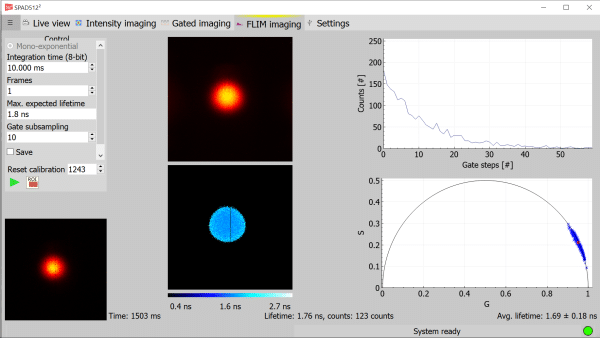
FLIM images are generated with the phasor method. In the case of mono-exponential samples, the calibration of the IRF finds the falling edge of the gate. The end of the IRFs falling edge determines the starting point for normal measurements and the measurement window is defined by the maximum lifetime. Since the gate falling edge is convolved with the fluorescence decay for normal measurements, we will capture exactly the exponential part of the decay curve. The phasor is calculated directly from the measurement data without further corrections.
In the case of bi-exponential data, the calibration and measurements rely on the complete gate window. Therefore, the calibration determines both the gate rising and falling edges and calculates the complete window, including the extension from the fluorescence convolution. For normal measurements, the phasor data is calculated and the IRF phasor data is subtracted from it.
For each measurement, an intensity image, lifetime image, pixel response curve and phasor plot are generated. Each is displayed in one quadrant of the screen on the right side of the control panel. One can add multiple pixels (up to 10) to the pixel curve graph by clicking on them in either the intensity or lifetime image. Hovering over any of the image pixels will also highlight the corresponding phasor in the phasor plot. The average calculated lifetime and standard deviation are printed in the bottom right corner. A colorbar below the lifetime image denotes the minimum and maximum lifetimes visible in the image.
Alternatively, one can stream out the raw data that is generated from the phasor calculations through the remote TCP/IP interface. The data for each pixel is streamed out and contains the intensity [cps], lifetime [ns] and the g/s coordinates of the phasor.
When the measurement is completed, the analysis tab is unlocked. Switching to the analysis tab transforms the intensity and lifetime images into plots. One can adjust the zoom and color range to adjust the image for better clarity. The intensity image is corrected for background noise and pile-up. The analysis mode has the following capabilities:
- ROI button > Click in the intensity image and move around the area of interest to draw the region of interest to be analysed. Click a second time to confirm the region. Once a region has been selected, the ROI is also displayed in the lifetime image. The average curve is displayed in the curves plot on the top right and the lifetime phasor points belonging to the current selection are shown in the phasor plot. One can make up to 20 regions of interest.
- ROI reset > Clears all active regions of interest.
- Open button > Allows to load a previously stored set of ROIs. Once an analysis result is stored, a file is saved with the coordinates of each ROI. This file can be selected to repeat the same analysis on a new measurement.
- Save button > Saves all four plots into *.pdf documents, saves the list with the information on counts and lifetime into a *.txt file and saves the coordinates of each ROI into a *.txt file that can be loaded to rerun the analysis on a new measurement.
Settings
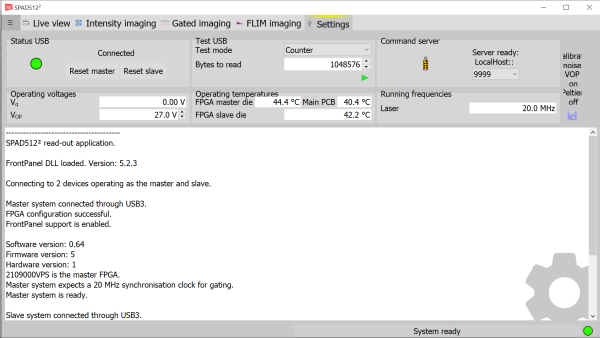
The last tab shows the system settings. The top half is divided in 6 boxes:
- Top left > Status indication of the USB connection. This is indicated green when the system is connected by USB3. The system can be reinitialized by clicking the reset button. The software gives a warning when the system is not connected with USB3.
- Top middle > Speed test for the USB connection. The transfer speed is calculated by transferring the set number of bytes and dividing by the required time.
- Top right > Status of the remote communication server. The software can be programmed from any capable TCP/IP software package, see the command guide for instructions. The listening port on the localhost can be changed through the dropdown menu.
- Bottom left > Current operating voltages. The operating voltages can be changed on the fly. One can change the detectors sensitivity by adjusting the VOP. Vq is set to 0 by default and cannot be changed.
- Bottom middle > Current operating temperatures of the FPGA, the interposer (main) PCB and the chip PCB on which the sensor is located. Therefore, the chip PCB temperature should be a good indication of the sensors current operating temperature. Ideally, the sensor temperature should be kept as low as possible. Without air flow, the PCB temperature should be below 45°C.
- Bottom right > Current SMA input frequencies. Shows the current running frequency for the SMA laser and frame clock input.
The log is printed in the field below. Here you can find information regarding the connection to the two FPGAs and the current versions of the firmware and software. The log can be saved with the save button on the right.